You sign in on CorAura's secure accounts page and return to TrademarkAura. The accounts page is always dark, whichever theme you chose in the app.
Create your account
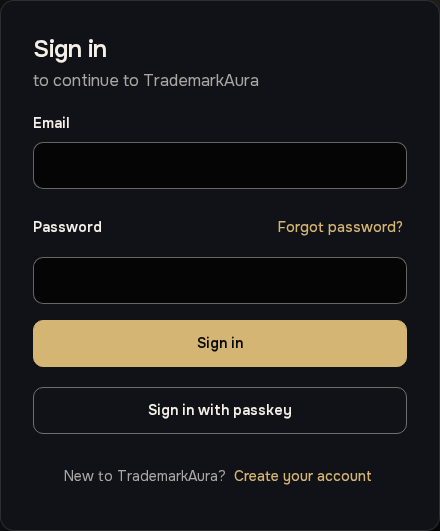
- Open TrademarkAura and choose to sign in. The accounts page opens with Sign in and the line "to continue to TrademarkAura".
- Choose Create your account.
- Enter your Full name, Email and Password. The password needs at least 8 characters.
- Choose Create account. You return to TrademarkAura, where you choose a workspace.
3553c0f.Sign in again
- Enter your Email and Password, then choose Sign in.
- Or choose Sign in with passkey and follow your browser's prompt.
If your session ends, opening a page in the app takes you back to sign-in. Where it cannot, the app shows Sign in to continue. Choose Sign in and return to sign in again and come back.
Verify your email
Some steps need a verified email, for example starting a free trial. Choose Send verification email on the accounts page, then open the link in the email. The link works for one hour, and you can ask for another after one minute. Open the link in the browser where you are signed in.
Add a passkey
- Open Account security from the accounts page.
- If your email is not confirmed yet, choose Confirm your email, then open the link in the email while you are signed in to this account.
- Choose Add passkey and follow your browser's prompt. You see "Passkey registered." when it works.
Adding a passkey needs JavaScript turned on in your browser.
Reset a forgotten password
- On the sign-in page choose Forgot password?.
- Enter your email and choose Send reset link. We email you a single-use link.
- Open the link. On Choose a new password, enter New password and Confirm new password, then choose Save new password.
If the page says the reset link is invalid, already used or expired, choose Go to sign-in and request a new link.
The permission screen
Sometimes the accounts page shows Authorize access before returning you to the app. It says which application is asking and what it can read: your account identity, your name and profile, your email address and its verification status, and the right to keep access when you are not actively signed in. Choose Allow access only if you meant to sign in to that application. Choose Deny access otherwise.
If something goes wrong
See Troubleshooting.